Getting Started with MSgames
Welcome to MSgames, an experiential learning platform designed to help management educators move from passive learning to learning through decisions, action, and consequences.
MSgames brings together three learning experiences:
- Simulation — multi-round business simulations where participants make decisions and experience their consequences.
- CaseStudio — live, role-based case experiences where participants investigate, collaborate, and defend their recommendations.
- ReflectAI — AI-enabled oral assessment that evaluates whether participants understand and can defend the reasoning behind their written work.
Together, these experiences help faculty bring decision-making, reasoning, and applied learning into the classroom.
How MSgames Works
Using MSgames is simple. As an instructor, you choose the experience you want to use, set up a session, configure it for your class, and share the session code with your participants.
The basic workflow is:
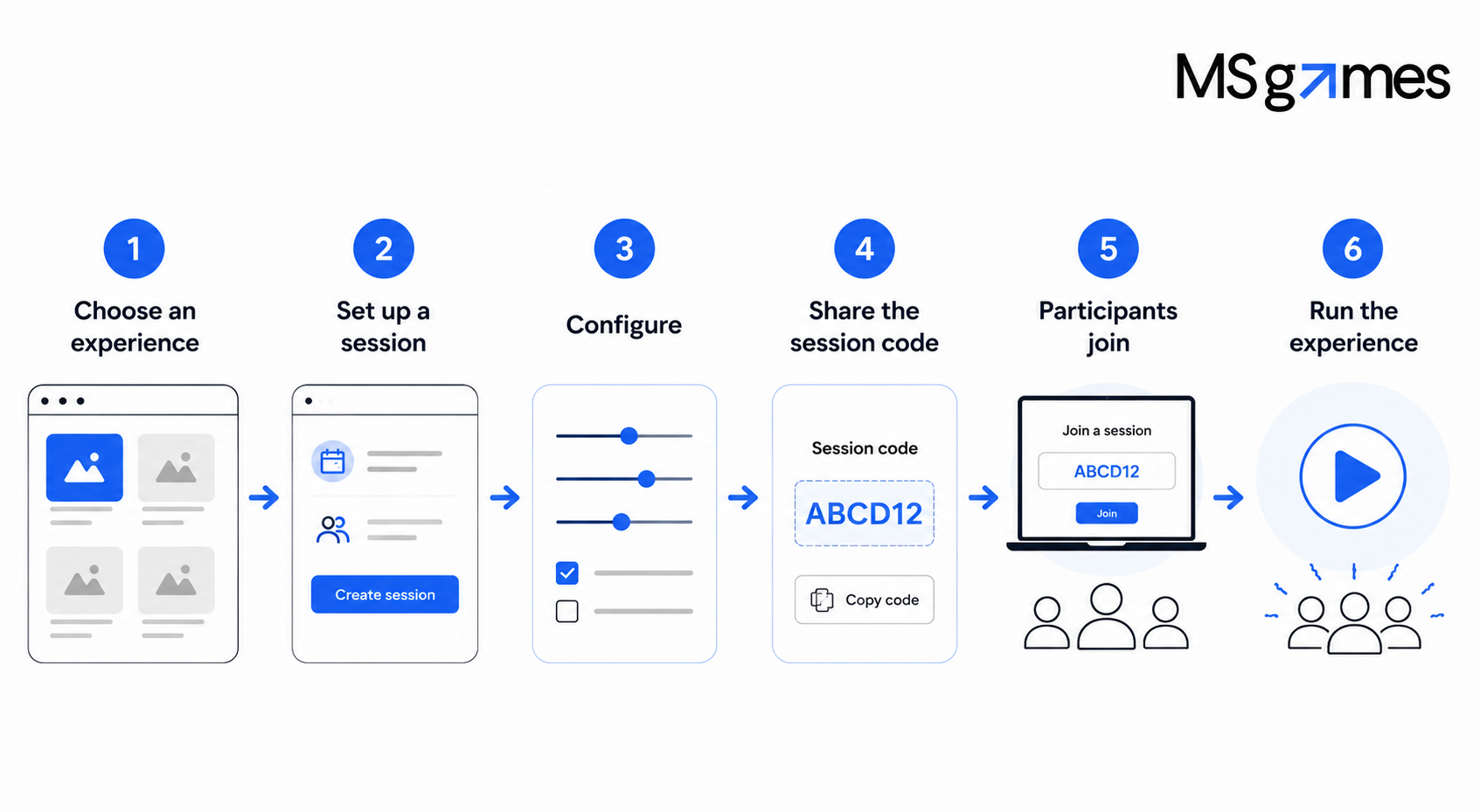
The exact setup and configuration options vary by experience. The detailed guides for Simulation, CaseStudio, and ReflectAI walk you through each product from setup to completion.
1. Get Access to MSgames
Instructors
To access the instructor experience, select I'm an Instructor on the MSgames login screen and sign in using your email address and password.
If you have forgotten your password, select Reset it here on the login screen to reset your password.
Participants
Participants use the I'm a Student option to access MSgames.
Once an instructor has created a session, participants join that specific session using the session code provided by the instructor.
2. Your MSgames Dashboard
After signing in, you'll arrive at the MSgames dashboard.
The dashboard is your starting point for accessing the three MSgames experiences:
Simulations
Browse the available simulations and select the one you want to use. You can then set up a session and configure the parameters for that simulation.
CaseStudio
Access CaseStudio to work with case-based, role-driven learning experiences. CaseStudio allows faculty to select a ready-to-use case or work with CaseEngine to create institution-owned cases.
ReflectAI
Access ReflectAI to create an AI-enabled oral assessment experience around participant submissions. ReflectAI focuses on evaluating whether participants can explain and defend their reasoning in their own words.
Join a Game
The dashboard also provides a Join a Game option where participants can enter their session code and join an active learning experience.
3. Choose the Right Experience
Not sure where to start? Think about what you want participants to do.
Choose Simulation when you want participants to...
Make decisions and experience consequences.
MSgames simulations place participants in business decision environments where they make decisions across areas such as strategy, finance, marketing, and operations. The multi-round format allows participants to see how their decisions affect outcomes over time.
Start here → Create & Run a Simulation Session
Choose CaseStudio when you want participants to...
Investigate a business problem, collaborate, and defend a recommendation.
CaseStudio transforms a traditional case into a live, role-based decision experience. Participants enter the case as consultants, investigate the problem, work with teammates, and defend their recommendation to a simulated board.
You can use a case from the MSgames catalog or create an institution-owned case through CaseEngine.
Start here → Create & Run a CaseStudio Session
Choose ReflectAI when you want to...
Assess whether participants genuinely understand and can defend their work.
ReflectAI adds an AI-enabled oral assessment layer to written submissions, allowing participants to explain and defend their reasoning in their own words.
Start here → Create & Run a ReflectAI Session
4. Set Up Your First Session
Once you've selected an experience, the next step is to create a session.
For a simulation, for example:
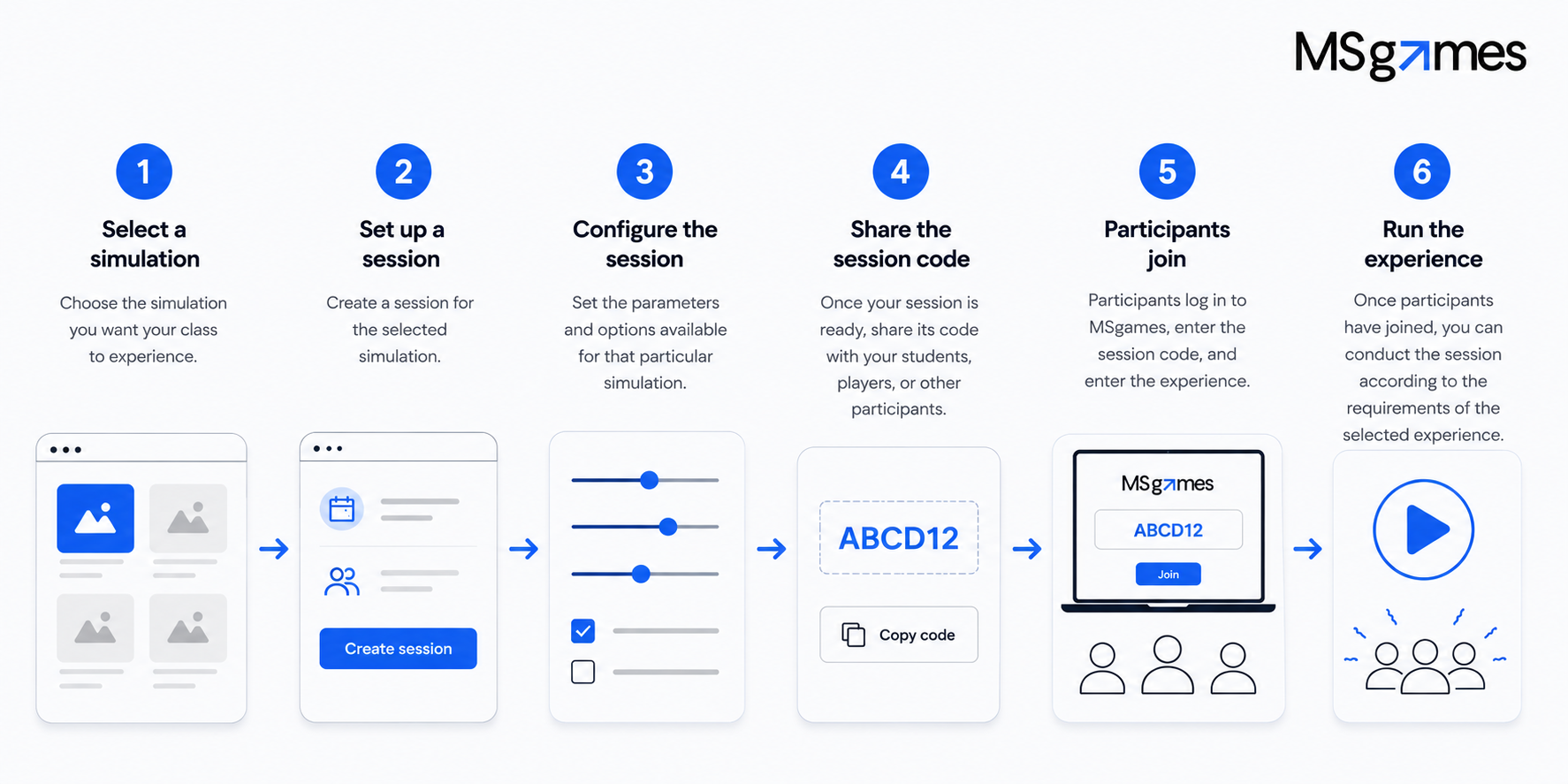
The exact steps and configuration options differ across Simulation, CaseStudio, and ReflectAI. Use the product-specific guides below for detailed instructions.
5. How Participants Join
Joining an MSgames session is straightforward.
Step 1: Log in
Participants select I'm a Student on the MSgames login screen and sign in.
Step 2: Enter the session code
From the dashboard, participants use Join a Game and enter the session code provided by the instructor.
Step 3: Join the experience
After entering the correct code, participants can enter the session and begin the assigned experience.
What should I give participants?
Before the session begins, provide participants with:
- Their MSgames login/access instructions
- The session code
- Any additional instructions or preparation required for the specific experience
- The scheduled session time, where applicable
6. Ready to Get Started?
Choose the experience you want to run and follow its complete step-by-step guide.
Simulation
Learn how to select a simulation, create and configure a session, onboard participants, run the simulation, and review the experience.
Create & Run a Simulation Session →
CaseStudio
Learn how to select or create a case, set up the experience, onboard participants, facilitate the session, and assess the resulting work.
Create & Run a CaseStudio Session →
ReflectAI
Learn how to set up an assessment experience, configure it for your participants, share access, run the assessment, and review the results.
Create & Run a ReflectAI Session →
Need Help?
If you're unsure whether your device is ready, run the MSgames System Check before your session.
If something isn't working as expected, visit Troubleshooting for common issues and solutions.
For questions that aren't covered in the Help Center, visit FAQs & Support to contact the MSgames team.